Do you need a keyboard for your MacBook Air?
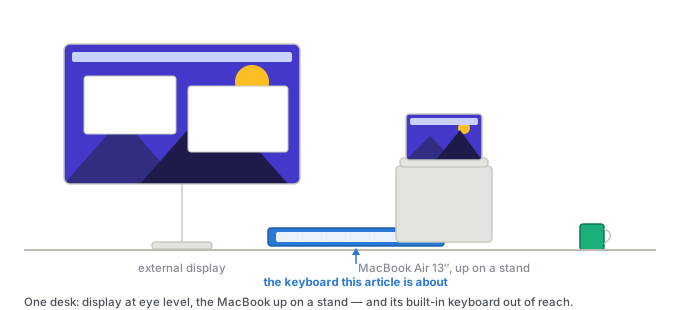
Based on Apple’s US accessory store prices (Magic Keyboard $99, with Touch ID $149, with Touch ID and numeric keypad $179, Magic Trackpad $129, Magic Mouse $79), Logitech’s published specification for the MX Keys Mini, and the manufacturer’s own Amazon listings for the CZUR K5S. Prices are US prices as listed on 14 October 2026 and move. My own setup MacBook Air 13″, M4, 16 GB / 256 GB, on a stand with one external display. How this was researched — a spec-based comparison, built from Apple’s published accessory prices, Logitech’s official spec sheet, and the manufacturer’s own Amazon listings. Every figure is traceable to the page it came from, and the product photo is the manufacturer’s own.
The short answer
| Your situation | What to do |
|---|---|
| MacBook open on the desk | Nothing. See the next section |
| Closed lid, or a stand high enough to put the built-in keyboard out of reach | You need one — this is the only mandatory case |
| You also drive an iPad or a second computer | Get one with a three-device switch |
| Dark room | Backlight is the feature worth paying for |
| Typing and pointing, as cheaply as possible | The one-piece budget option, with real limits |
If you skim only one line: the most common reason to buy an external keyboard is not that the MacBook’s is bad. It is that the laptop ended up somewhere the keyboard no longer reaches.
The keyboard you already have
A MacBook Air ships with a backlit keyboard and, more to the point, the best trackpad in the industry, both wired to the machine. If it sits open in front of you — flat, or on a low riser — you already own a better input setup than most of this article is about, and buying a second one is a downgrade in everything but position.
That “but position” is the whole question. Two situations change the answer:
- The lid is closed. In clamshell mode the built-in keyboard and trackpad are simply gone. This is the one case where a second keyboard is mandatory rather than optional.
- The laptop is on a tall stand. Reaching past the screen to type on an angled keyboard is the thing people actually complain about. If your external display is at eye level and the MacBook is underneath it, you are in this group.
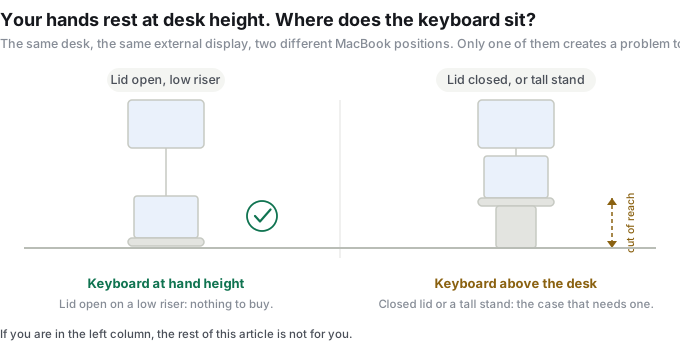
If neither applies, this is the cheapest article you will read this month: the answer is nothing.
Four things that change when the keyboard is not Apple’s
Once you have decided you need one, the decision is not “which keyboard feels nicest”. It is how many of these four macOS-specific behaviours you are willing to work around.
1. The modifier legends are wrong, but the positions are not
This is the most over-feared difference and it is mostly cosmetic. Left of the spacebar, both layouts put three modifiers in the same order:
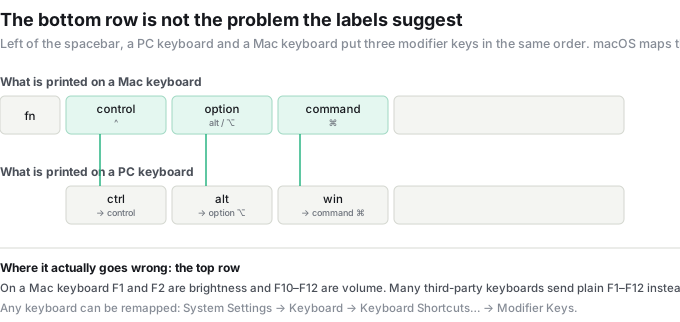
macOS remaps a standard PC keyboard on connection: the key next to the spacebar becomes Command, the one before it Option, the leftmost Control. Your fingers land where they expect. What you lose is the printed legend — you read alt where you meant ⌥ — and if that bothers you, System Settings → Keyboard → Keyboard Shortcuts… → Modifier Keys will remap any connected keyboard, including the built-in one.
2. The function row is where it actually breaks
On a Mac keyboard, F1 and F2 are brightness, F10 to F12 are volume. Many third-party keyboards send plain F1–F12 on that row instead, so the shortcut needs Fn held down — and some models have no Fn lock, which means holding it forever. This, not the missing ⌘ key, is what separates a keyboard that feels native from one that fights you. Check it in the manual before buying; it is rarely in the marketing copy.
3. How it wakes up
Apple’s keyboards wake on a keypress and are ready. Cheaper Bluetooth models sleep after a few minutes and need a keypress to come back — the CZUR K5S states in its own listing that a tap on its touchpad will not wake it. If the keyboard lives across the desk from you, that is a small friction, several times an hour, forever.
4. A third-party trackpad will not do what your MacBook’s does
This is the one people discover after buying. macOS gestures — three-finger drag, four-finger swipe between full-screen apps, pinch to zoom, Mission Control — need hardware that reports multiple simultaneous touches, and the system-level ones effectively mean Apple’s own trackpad. Apple’s Magic Trackpad is $129. A mouse is $79 and does the job.
The corollary matters for the budget end: a keyboard with a built-in touchpad gives you scrolling, clicking and cursor movement. It does not give you the gesture layer, and no amount of configuration adds it.
The checklist before you buy
| Question | Why it decides the purchase |
|---|---|
| Does it have an explicit Mac mode, or will you remap it yourself? | Tells you whether the Fn row and media keys will behave |
| How many devices does it pair with? | One at a time is normal at the cheap end; three with a switch button starts around $100 |
| Backlight? | Costs battery life, and it is the single feature that separates price tiers here |
| Number pad? | A compact layout keeps the mouse closer and your shoulders straighter |
| Does it ship with a cable you can type on? | The difference between “flat battery” and “back to the laptop keyboard” |
| What size are the keycaps? | Compact keyboards shrink them; read the listed dimensions rather than the photo |
What each price step buys
| Price | What you get | Who it is for |
|---|---|---|
| $33–39 | One-piece keyboard with a built-in touchpad, 81 keys, no backlight, one device at a time | Media, travel, a second machine — see the card below |
| $79 | Apple Magic Mouse | You only need pointing, not typing |
| $99 | Apple Magic Keyboard — native layout, no Touch ID, no backlight | You want zero decisions and a native Fn row |
| $99.95 | Logitech MX Keys Mini — backlight, three devices, key mapping that follows the paired computer | The step that actually changes the experience |
| $129 / $149 / $179 | Magic Trackpad / Magic Keyboard with Touch ID / with Touch ID and numeric keypad | The full gesture set, or Touch ID, or a number pad |
The three I would shortlist
On the prices: these are US list prices as I found them on 14 October 2026, and they move — check before you buy. The two cheaper tiers are frequently discounted: Logitech’s own keyboard was listed on Amazon at $89.99 against a $99.99 list price when I checked, and the budget one-piece exists under two listings for the same hardware at $33 and $39, which is worth knowing before you buy the more expensive of the two.
What I would actually do
If the MacBook spends most of the day closed or on a tall stand, this is not a category worth optimising: pay the $99–$149, get a native function row and stop thinking about it.
If what you want is a keyboard for the couch, for travel, or for a machine you occasionally drive from the sofa, the $39 one-piece is a legitimate answer and nothing more expensive is better at that job — it is one device instead of two, and that is its entire argument.
And if you are not sure you need one at all, re-read the second section. That is the honest answer more often than the rest of this page is.